
Gift Voucher User Guide
For Administrators
Introduction
Voucher Management
Sell a Voucher
Complimentary Vouchers
Manage Gifts
Manage Gift Categories
Manage Promotions
Promotion Features
- Callout wording
- Schedule Promotion dates
- Voucher validity
- Custom monetary voucher settings
- Code mode
- Web shop settings
Enabling Promotions
Tracking Promotions
Reporting
Resources
Manage Users
Billing
Web Shop
Voucher Template
Manage Promotions
Overview
The Promotions functionality enables you to sell gift vouchers for monetary values or packages at a discounted rate. You can run a limited flash sale or sell one or more gift(s) at a reduced price as monthly offers on a rolling basis.
The functionality includes the following features:
- A percentage reduction or fixed monetary discount.
- Show marked-down prices or create a code to be applied at checkout.
- Pre-set times and dates for the discounts to be displayed on the Web shop.
- Set specific voucher validity periods.
- Offer different types of discount on different gifts (if required).
- Not all gifts need to be discounted.
- The option to offer a discount on the price of monetary values or add value to monetary vouchers when they are redeemed.
- Set a floor for monetary vouchers so that discounts do not apply below that level.
- Highlight discounts with a callout on the gift item images and an announcement bar above the shop.
- Tracking of the discounted amounts.
Before setting up the sale in the gift voucher system, decide on which type of discounts should be applied and to which gifts.
The promotion is set up first with the required terms and conditions and then the promotion is enabled for relevant gift items.
Glossary
Definitions of words used in the portal to manage promotions.
Announcement bar
An area at the top of the Web shop where copy can be added to draw attention to a sale or gifting event. Publishes immediately and must be managed manually.
Callout
Small coloured block which appears at the top right hand corner of a gift item. Automatically applied and removed if a promotion is scheduled. Callout wording is added to the coloured block.
Voucher validity
The beginning and end dates for when a voucher is valid.
Active
A promotion is active when it has been set up and is ready for use. It must be enabled on the relevant gift items for the functionality to be applied.
Inactive
A promotion is shown as inactive prior to being set to active. For example it can be saved during set up and will be inactive prior to outstanding steps being completed.
Scheduled
A promotion is scheduled when it has been activated and applied to the relevant gift items. It will go live on the Web shop at the specified times.
Added value
Monetary values can be offered at a discounted price. If, however, you want to keep the values the same but offer extra monetary amounts above the value on redemption, this is available as Added value.
Create new
The terms for a promotion are set up on the Promotions tab on the Manage gifts page. They are then enabled on the relevant gift items. If the terms are not the same for all gifts, a separate promotion must be created for different set of terms. E.g. if a 20% discount is offered for a limited Black Friday sale, but a £30 discount is being offered on an accommodation package as part of a longer-term offer, these would be set up as two different promotions.
To create a new promotion, click on the following from within the gift voucher portal:
- Manage gift items
- Promotions tab
- Create new promotion (green button in the top right hand corner).
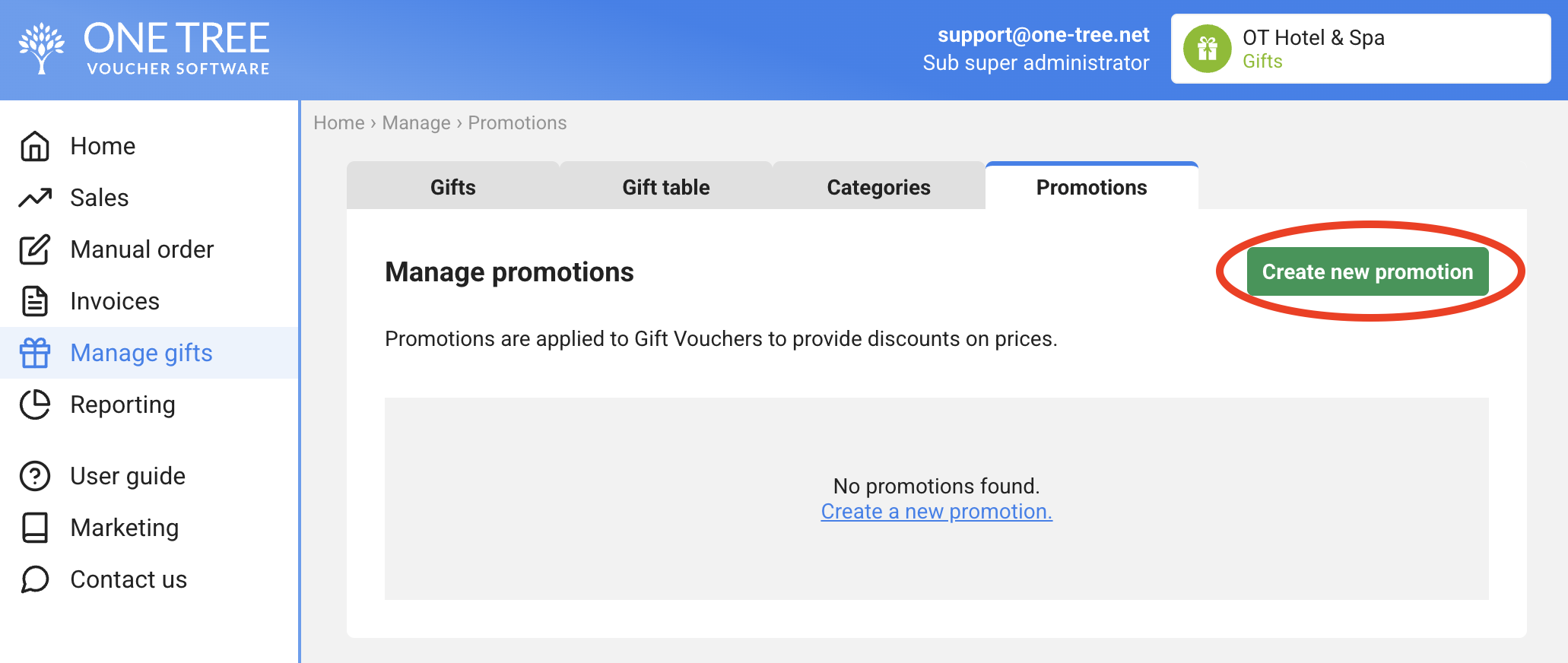
This opens a new screen. Name the promotion. This might refer to the discount or to the event, e.g. BlackFriday26, MothersDay27. Use names that can be extended if the sale is likely to be repeated on an annual basis, e.g. Spring26, then Spring27. This name appears on the Gift table and Promotions tab and on the email purchase confirmations sent to buyers. The text is freeform and it is recommended that a name is used only once for clarity. - Click on the down arrow to select the type of discount required. This can either be a percentage reduction or fixed value discount. Add the value to the field.
- Click on the slider to make the promotion active. Note: This will not enable the promotion for any gifts. This must be actioned separately from the Gift table tab.
- Click Save.
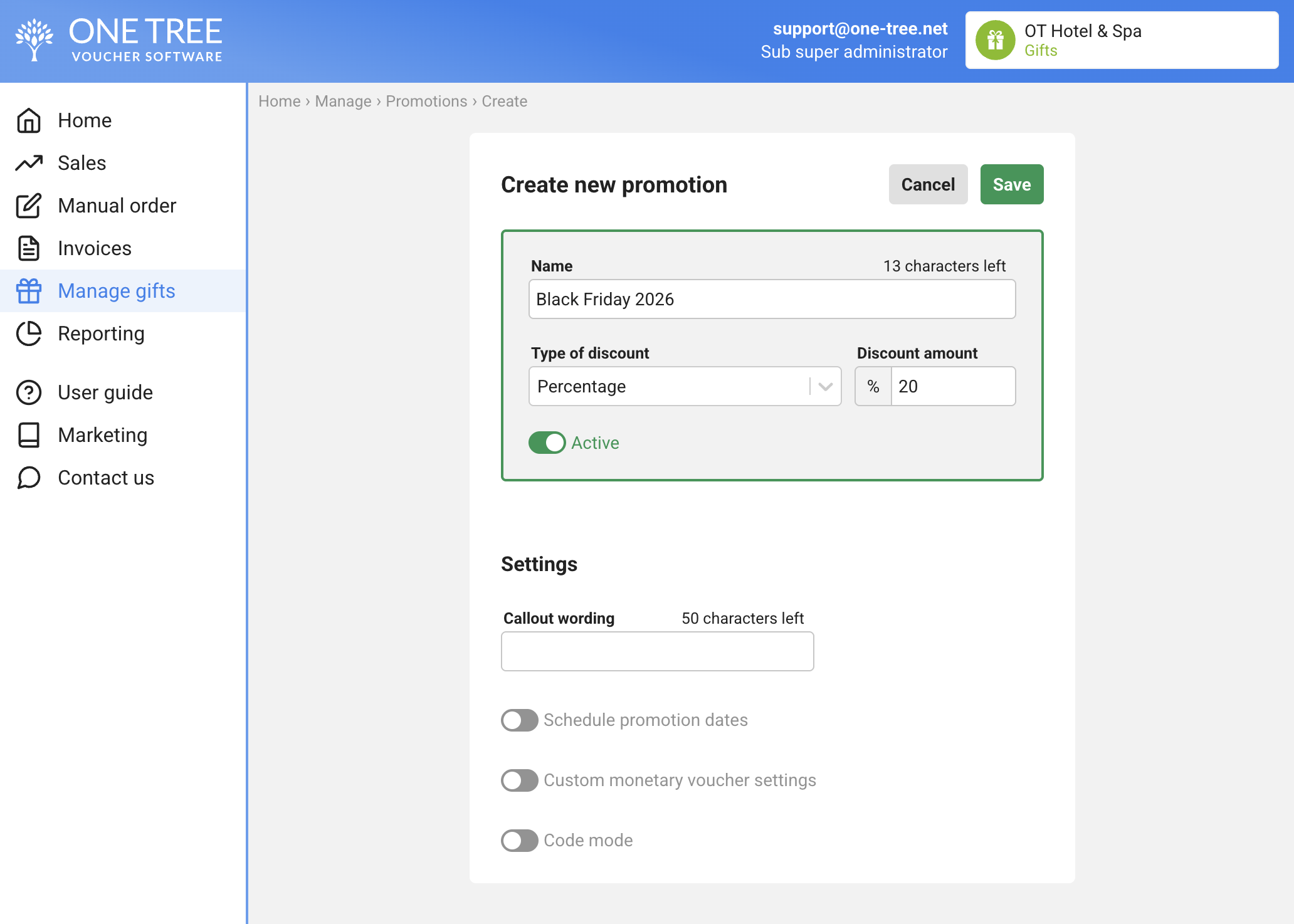
To enable this promotion immediately with no scheduling or change to the voucher validity, see Gift table and Callouts to finish the set up.
Additional functionality is available. See Promotion features on how to set this up.