Gift Voucher User Guide
For Administrators
Introduction
Voucher Management
Sell a Voucher
Complimentary Vouchers
Manage Gifts
Manage Gift Categories
Manage Promotions
Promotion Features
- Callout wording
- Schedule Promotion dates
- Voucher validity
- Custom monetary voucher settings
- Code mode
- Web shop settings
Enabling Promotions
Tracking Promotions
Reporting
Resources
Manage Users
Billing
Web Shop
Voucher Template
Enabling promotions
Gift table
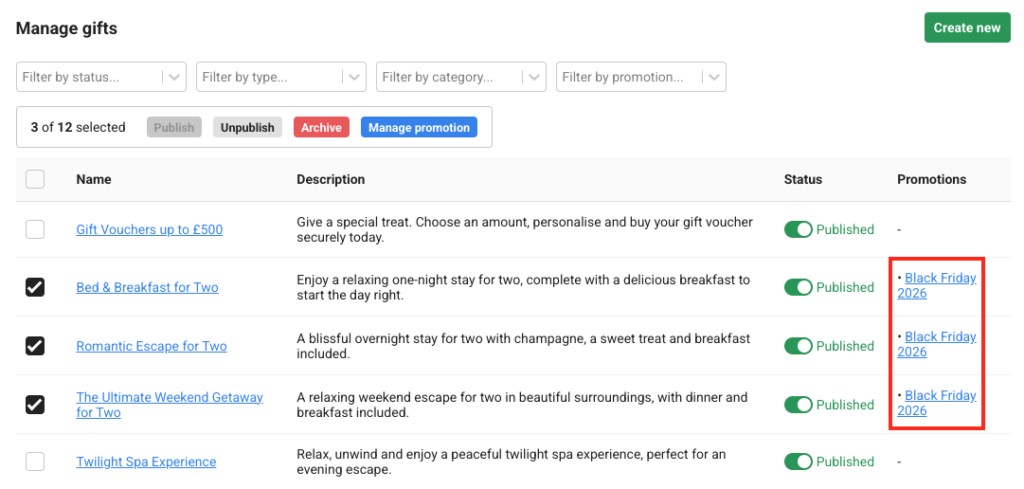
Once the promotion has been created and is active, it must be enabled on the gift items on which you wish to run the promotion. This is actioned from the Gift table tab. The Gift table displays all gift items stored in the system. It shows whether gift items are published or unpublished on the Web shop and which promotions have been enabled.
Gift items can be filtered by using the boxes at the top of the page.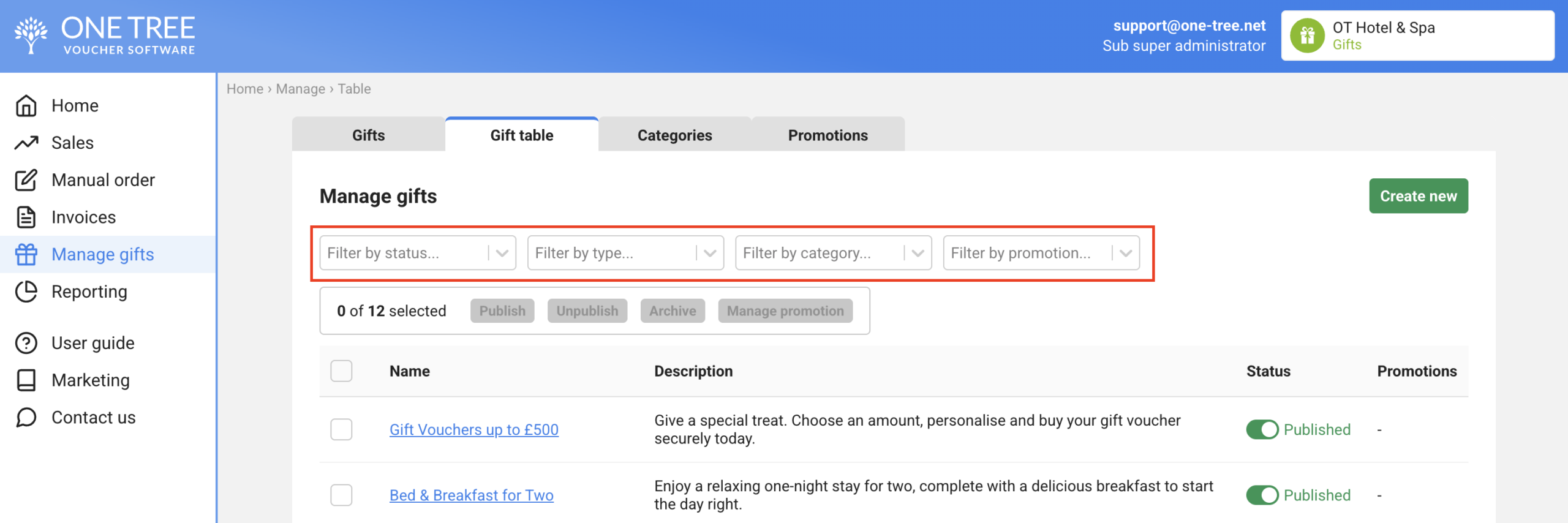
To enable a promotion on one or more gift items:
- Click on the Gift table tab.
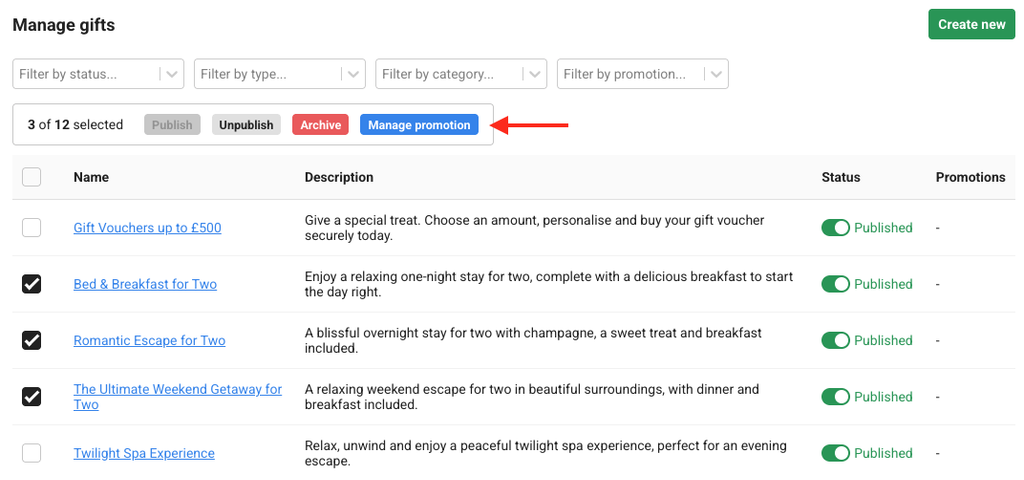
- Select the gifts by clicking on the boxes in the left hand column. To select all, click on the box next to the heading Name (top left).
- Click the blue Manage promotion button.
- Click on the down arrow and select the promotion to be enabled for those gift items.
- Click Add.
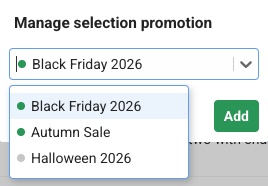
The selected promotion will now run on those gift items and appears in the column to the right. To check the criteria for the promotion, click on the name of the promotion listed at the end of the line of information. The gifts enabled for the promotion are displayed on this page.
Running multiple promotions
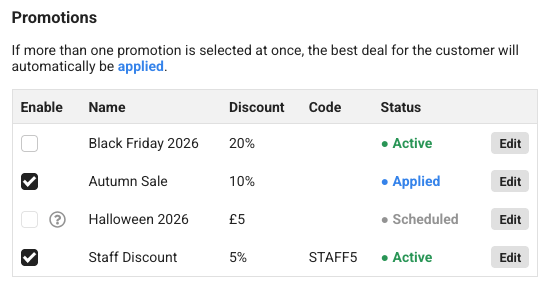
If more than one promotion is enabled on a gift item, the names of both promotions will appear in the final column. For example, you could offer a permanent discount code to staff or to a group of customers (e.g. newsletter signups etc.) and run a flash sale concurrently.
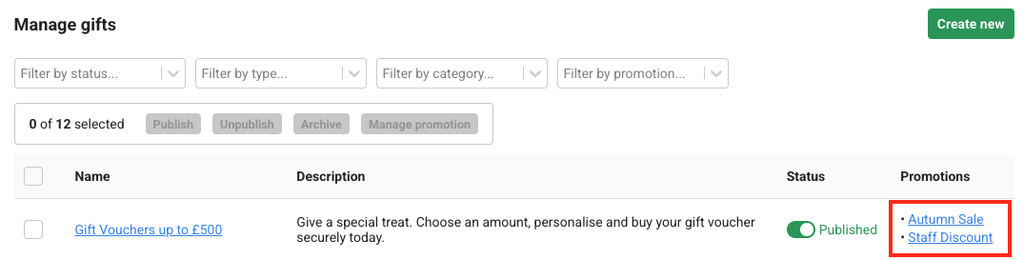
If two promotions are enabled on a gift item, the discount which offers the best value to the customer will be applied. This is shown on a small table at the bottom of the Edit gift item page.