Gift Voucher User Guide
For Administrators
Introduction
Voucher Management
Sell a Voucher
Complimentary Vouchers
Manage Gifts
Manage Gift Categories
Manage Promotions
Promotion Features
- Callout wording
- Schedule Promotion dates
- Voucher validity
- Custom monetary voucher settings
- Code mode
- Web shop settings
Enabling Promotions
Tracking Promotions
Reporting
Resources
Manage Users
Billing
Web Shop
Voucher Template
Promotion Features
The following features can be applied to a promotion so that it is set up and ready to run automatically when required. Highlights can also be added to draw attention to the sale on the Web shop.
Callout wording
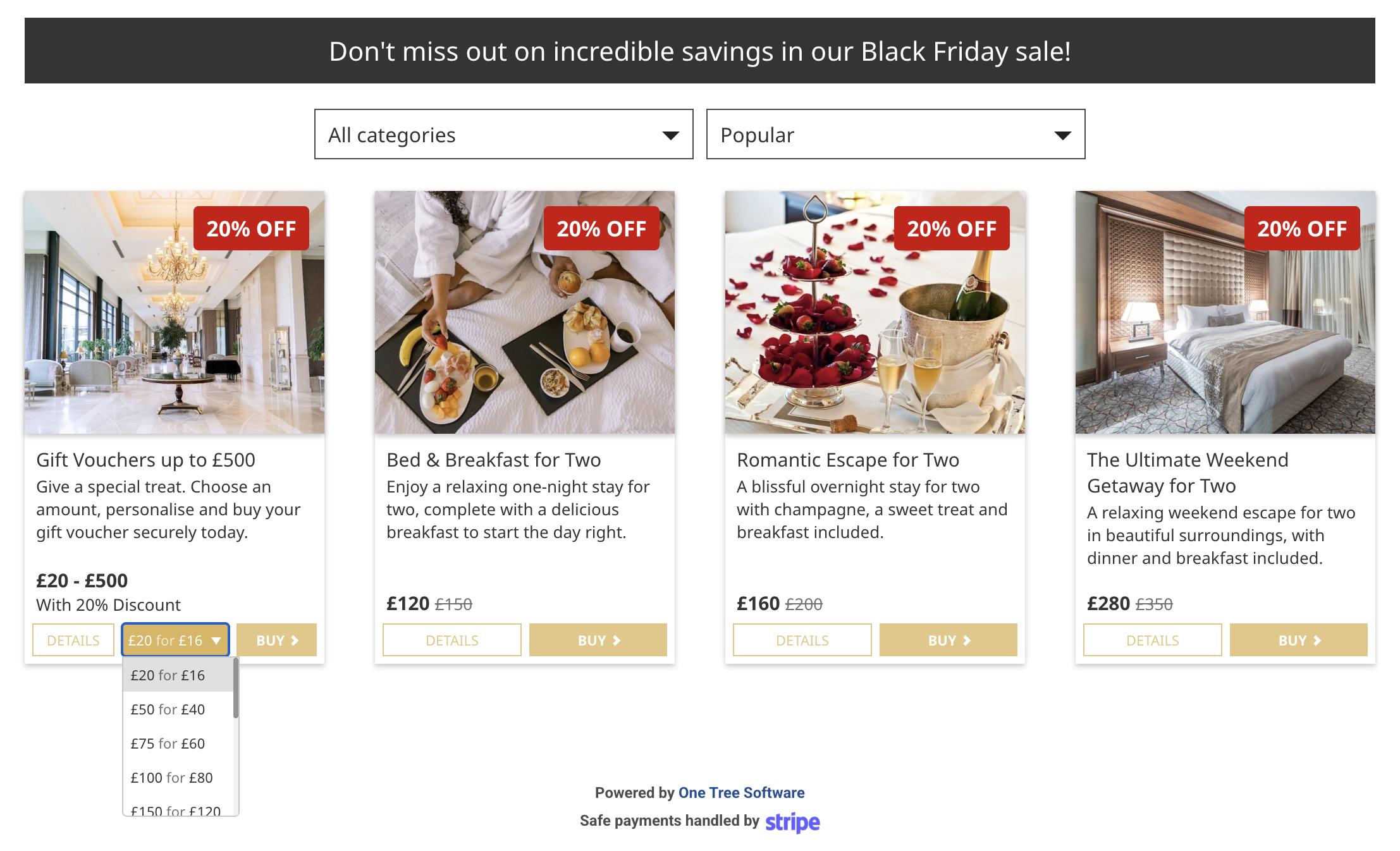
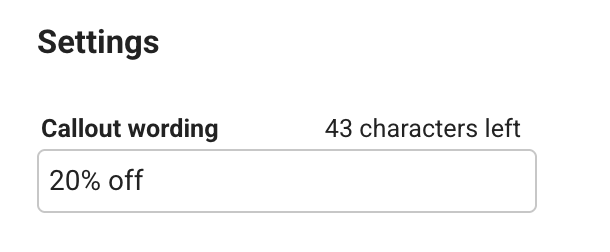
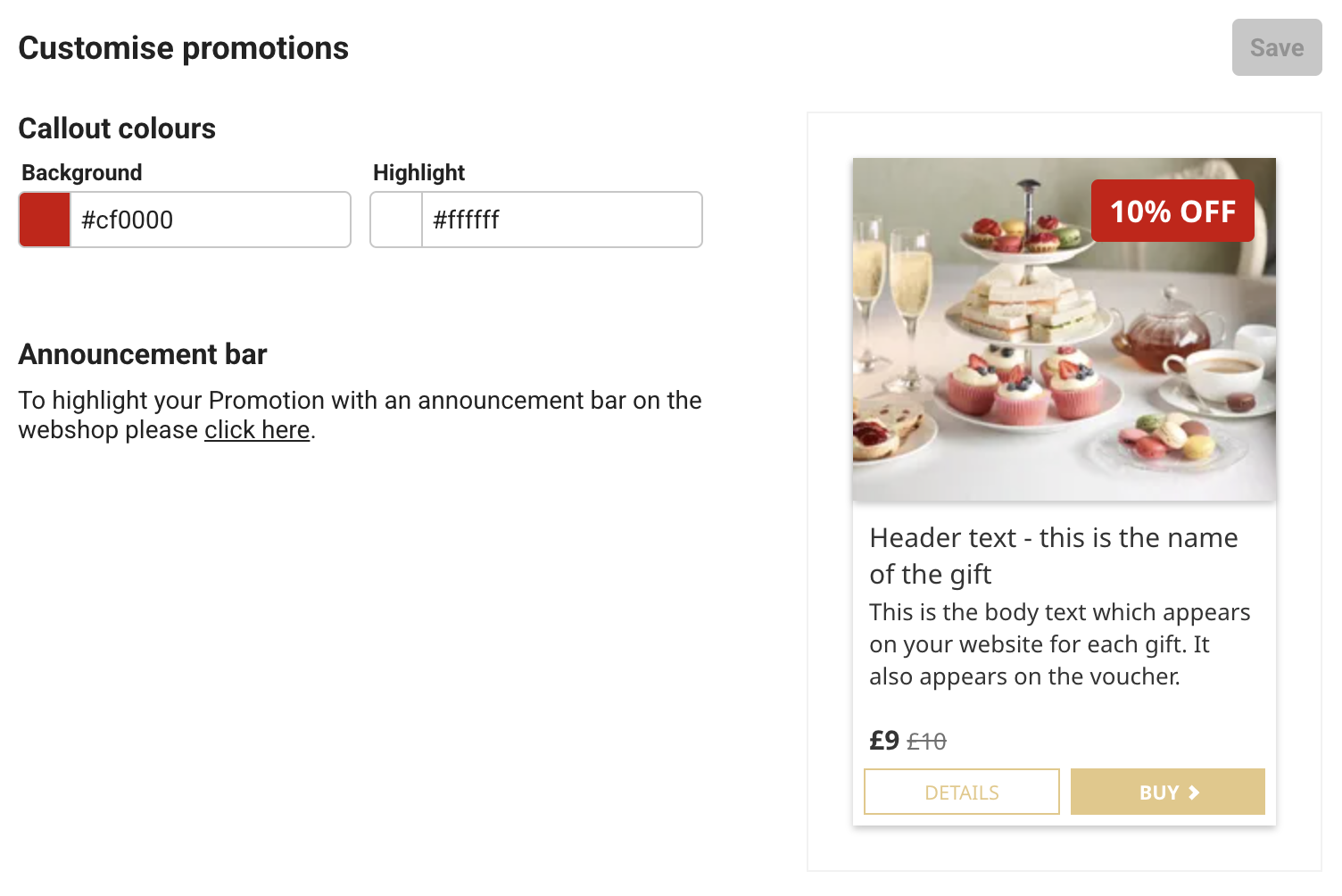
The call out is a small rectangular box overlaid on the top right hand corner of the gift item image. It will appear on each image where the offer is enabled. Free form text is added here, such as 20% Off, Save 20%, SALE or BLACK FRIDAY etc. The same text is applied to all gifts enabled for that promotion.
Schedule promotion dates
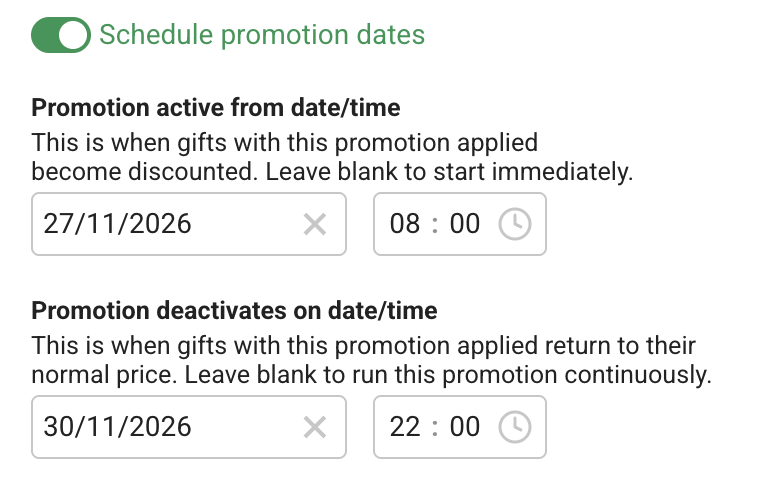
The promotion can be set to run on the Web shop between specific times and dates. Click on the slider to reveal fields to add the date and time when the discounts should be published and unpublished on the Web shop. The reduced pricing is applied and removed at these points. The previous selling price is crossed out and the new price shown, and the callout is overlaid on the Gift item image. If these fields are left blank, the discounts will appear as soon as they are enabled on the relevant gift items. If the de-activation fields are left blank, the promotion will continue until it is removed manually from the gift items.
Voucher validity
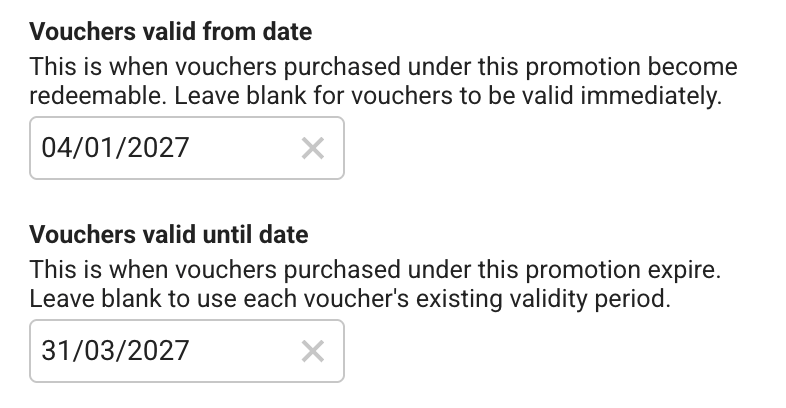
These fields are left blank if the vouchers can be used immediately and there is no restriction on the validity of the voucher – it extends to the usual time frame (e.g. 12 months from purchase). However, if you wish to reduce or specify an exact period when the vouchers are valid for use, add the required information here. E.g. You may want to restrict the validity of vouchers sold during a Black Friday sale to January 1st – March 31st the following year. These dates are shown on the voucher itself and the status will show as valid during this time frame on the Voucher detail page.
Custom monetary voucher settings
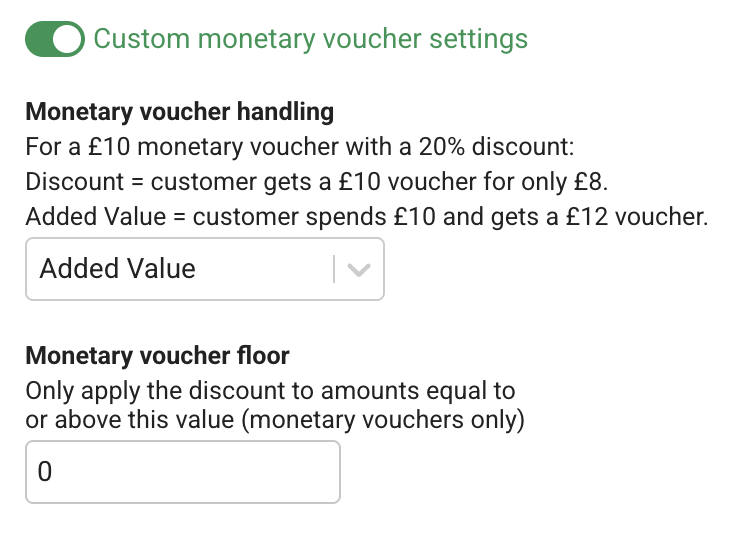
The percentage discount entered at the top of this screen can also be enabled on monetary gifts. The amounts are calculated automatically and shown on the Web shop. A discount is the default.
However, to display the monetary values at the same cost, but with extra value available to spend on redemption of the voucher, click on the down arrow and select Added value. This will display the cost of the voucher and the additional spend offered at that price. The value and sale price are shown on the Voucher detail page and on the CSV downloads in Reporting. A floor can also be added so that discounts or added value are only available on amounts equal to or above this level.
Code mode
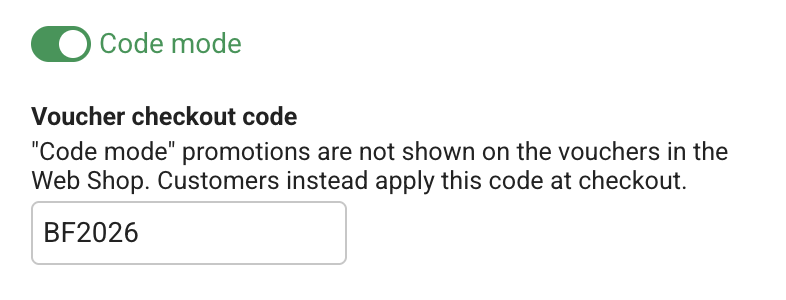
Code mode is available to offer a discount code. This is added at the checkout and might be used for VIP customers, staff, returning guests, or customers signing up to a newsletter etc. Code mode is applied by clicking on the slider and adding the wording required. A promotion can either be set up as Code mode or as a discount, but not both.
However two promotions can run concurrently, one as Code mode and one as a flash sale promotion. If this is required, each type of promotion should be set up separately. Active and past promotions can be viewed on the Manage promotions tab on Manage gifts. The Manage gifts table shows which promotions have been applied to the gifts.
If two different types of promotion are run at the same time, the best discount will be applied in this instance, but not both.
When Code mode is used, there are no visual displays on the Web shop, but a reference to the code could be added to the Announcement bar if required.
Click Save to create the promotion. The promotion can now be enabled the relevant gift items on the Gift table.
Web shop settings
The background and text colours for the call outs displayed on the gift item images can be customised. These colours are set in Manage gifts -> Promotions -> Customise promotions section. They can be set to match your website or a contrasting colour may be used to highlight the sale. The callout will appear immediately on enabled gift items if the sale is starting straight away, or at the date and time a sale is scheduled in the future.
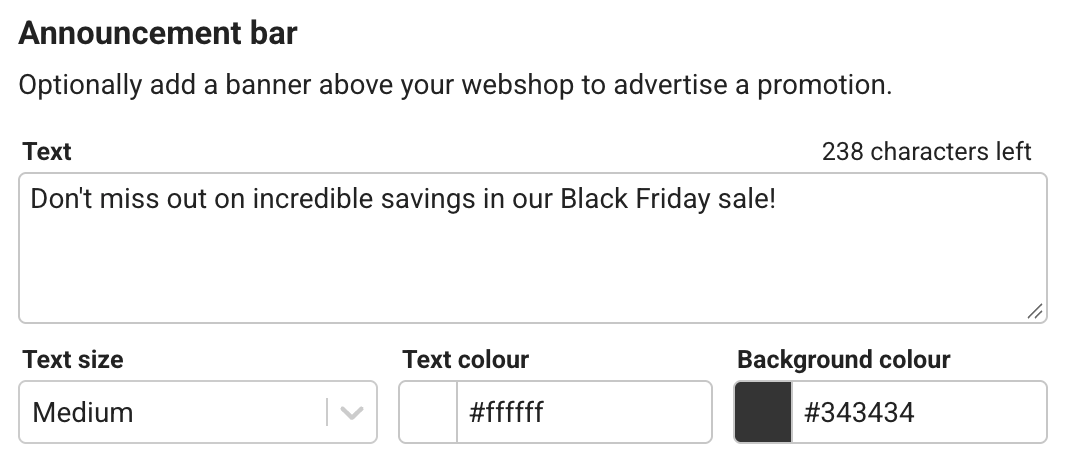
An announcement bar can be added above the Web shop to highlight a sale. The bar can also be used for general reminders about gifting events. During a sale period, the copy could draw attention to the promotion before and during the sale. Click on the link in Customise promotions to make changes to the Announcement bar.
Note: Changes applied to this bar take immediate effect on the Web shop, so it should be monitored and amended in a timely manner to ensure that the copy reflects the availability of discounts etc. Text relating to a sale should be deleted once the sale has finished. Deleting the text also removes any coloured background.
If start and end dates have been entered for the sale, the discounts will disappear on the Web shop once the sale has finished. The discounts can be added and removed manually if preferred.
The original price is automatically greyed out with a strike through and the discounted price is displayed prominently on the gift item. Where monetary values are discounted, both the face value and the discounted price of the voucher are displayed and customers select the required amount from the drop down box. If a floor has been set i.e. vouchers under a certain value do not attract the discount, these continue to be available for sale but will be charged at full price.