
Promotions User Guide
For Administrators
Sell a Voucher
To start:
Click on the green Manual order button from the Home or Sales page or click on the Manual order link.
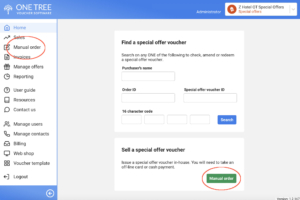
a) To print a voucher out for the customer
- Choose the offer, click on Buy.
- This will take you to the basket page
- Click on edit to change the quantity or delete the item.
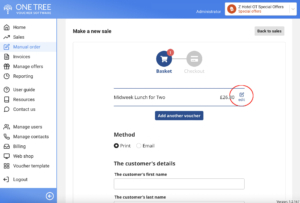
- Add the purchaser’s details to record their information. This step is optional. Click the Continue button.
- Take payment. Add a reference for internal use.
- Click Complete order button.
- Click on the buttons to download and print the special offer and the purchase confirmation.
b) To send the voucher out by email via One Tree
- Choose the offer, click on Buy.
- You will be taken to the basket page.
- Click on Edit to change the quantity or delete the item.
- Select the Email delivery button.
- Add purchaser’s details (optional) and email address.
- Take payment. Add a reference for internal use.
- Click Complete order button.
- The voucher will be sent out to the purchaser.
Important: An offline payment must be taken for the voucher. Add a code or note to the reference box. This might be ‘cash’, a reference to the credit card used, the purchaser’s surname, postcode or authorisation code.
Please ensure that Front Desk Users of the system are aware of company policy.